


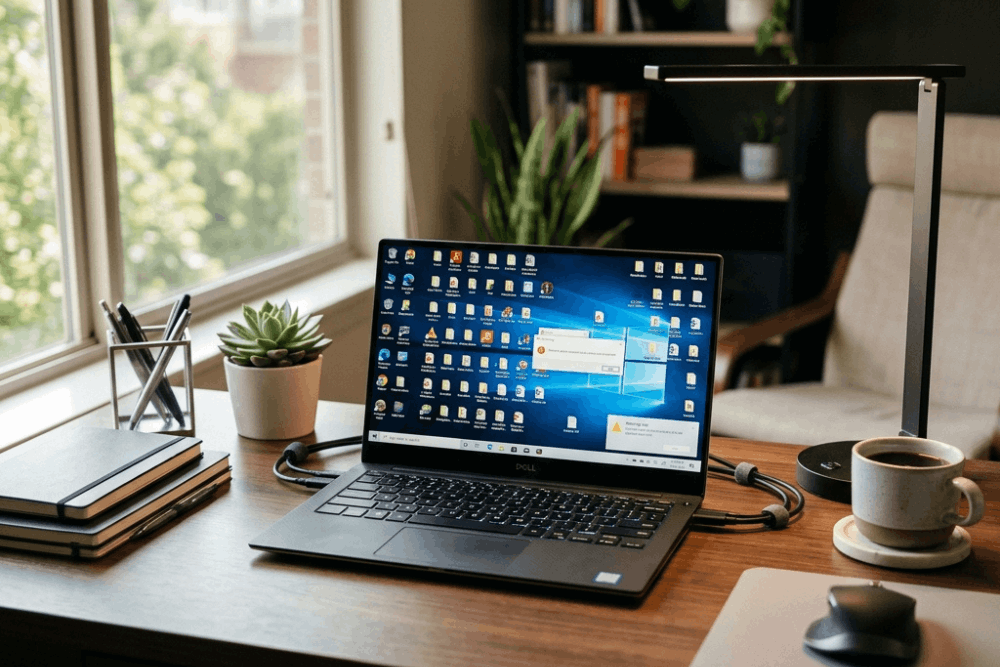
Have you just upgraded your computer to the new Windows operating system? Congratulations. You are now ready to enjoy all the new features and benefits it offers. But before you start exploring your new OS, there are some common mistakes you should avoid to ensure optimal performance.
Before you start using your PC every day, it is important to understand a few habits that can slow your system down. Many Windows users make small mistakes without noticing them. At first, these mistakes may not seem serious, but over time, they can affect your computer’s speed, storage, privacy, and security.
Today, I’ll share with you 12 common Windows mistakes that can slow down your computer, along with how to avoid them. I’m sure if you follow these tips, you’ll have a smooth and efficient experience with your Windows OS.
Related Reading: How to Make Your Computer Boot Faster
1. Ignoring Windows Updates
The first and biggest mistake Windows users make is delaying updates for too long. Some people avoid updates because they do not want their computer to restart. Others worry that updates will take too much time. While that is understandable, ignoring updates can create bigger problems later.
Windows updates often include security fixes, bug repairs, driver improvements, and system stability updates. In many cases, these updates protect your PC from new threats. They can also fix issues that cause crashes, slow performance, or app errors.
To avoid this mistake, check for updates regularly by going to Settings > Windows Update. If an update is available, install it when you have enough time. After the update finishes, restart your computer if Windows asks you to do so. This step is important because many updates are not fully applied until after a restart.
If you use your PC for work, school, or business, schedule updates during a quiet time. For example, you can install them in the evening or during a break. This way, updates will not interrupt important tasks, and your system will stay protected.
Also, avoid turning off updates completely unless you have a specific technical reason. For most users, keeping Windows updated is one of the easiest ways to maintain a safer and more reliable computer.
2. Installing Too Many Startup Programs
Another common mistake is allowing too many programs to open automatically when Windows starts. These apps use memory and processing power in the background. As a result, your computer may take longer to boot and may feel slow even after the desktop appears.
Common startup apps include chat tools, cloud storage apps, game launchers, printer tools, update managers, and media apps. Some of them may be useful, but not all of them need to start immediately.
To check your startup apps, press Ctrl + Shift + Esc to open Task Manager. Then you’ll need to go to the Startup apps tab. Look through the list and disable apps you do not need right away after turning on your PC.
However, be careful with security tools, touchpad drivers, audio utilities, and important system-related apps. If you do not recognize a startup item, search its name before disabling it.
This small change can make a noticeable difference, especially on older laptops or computers with limited memory. In many cases, reducing startup apps is one of the fastest ways to improve boot time without buying new hardware.
3. Keeping the Desktop Full of Files
A crowded desktop may look harmless, but it can make your computer harder to use. When the desktop is full of screenshots, documents, folders, downloads, and shortcuts, it becomes difficult to find important files quickly.
In some cases, a very cluttered desktop can also make Windows take longer to load after startup. More importantly, it can slow down your workflow because you waste time searching for files that should be organized elsewhere.
A better habit is to keep only your most-used shortcuts on the desktop. Move documents, photos, videos, and downloads into proper folders. Try organizing your files into specific folders, like:
- Work Documents
- School Files
- Personal Photos
- Receipts
- Project Files
- Screenshots
You can store these folders inside Documents, Pictures, or another drive if you have one. Also, try naming files clearly. A file named “tax-receipt-january” is much easier to find later than “IMG_2024” or “new document.”
As a result, your desktop will look cleaner, your files will be easier to manage, and your daily computer use will feel more organized.
4. Not Removing Unused Programs
Many users install apps and forget about them. Over time, these unused programs take up storage space. Some may also run background services, add startup entries, or send notifications even when you no longer need them.
This can make your system feel heavier than it should. It can also create security risks if old programs are no longer updated by their developers.
To address this, don’t forget to review your installed apps every month or two. Go to Settings > Apps > Installed apps and check the list. If you see programs you no longer use, uninstall them.
Still, do not remove apps randomly. Some programs may be important drivers, system tools, or software connected to your printer, graphics card, audio device, or laptop brand. If you are unsure about an app, check the publisher name or search for the app before uninstalling it.
A clean app list makes Windows easier to manage. It also frees up space and reduces the number of programs that may be running quietly in the background.
5. Filling Up the C Drive
The C drive is usually where Windows, system files, and many installed apps are stored. When this drive becomes almost full, your computer may slow down. Windows needs free space for updates, temporary files, app data, browser cache, and normal system tasks.
A useful rule is to keep at least 15% to 20% of your C drive free if possible. If your storage is nearly full, start with simple cleanup steps.
First, go to Settings > System > Storage and turn on Storage Sense. This built-in Windows feature can help remove temporary files, empty the Recycle Bin, and clean files you no longer need.
Next, check your Downloads folder. Many people forget about this folder, but it often contains large installers, videos, PDFs, ZIP files, and duplicate downloads. Delete what you no longer need.
Also, move large personal files such as videos, old photos, backup folders, and project files to another drive or cloud storage service. If you use cloud storage, make sure your important files are fully synced before deleting local copies.
Keeping enough free space on your C drive ensures Windows has the room it needs to operate properly. This can improve updates, reduce errors, and help your PC feel more stable.
You may also need: How to Fix Common Computer Errors
6. Downloading Software From Unsafe Websites
Downloading software from random websites is one of the riskiest mistakes you can make on Windows. Some websites offer fake installers, modified apps, unwanted toolbars, or harmful files. Even if the software looks real, it may include extra programs you did not ask for.
To stay safe, download software from official websites whenever possible. For example, download Chrome from Google’s official website, VLC from the official VLC website, and drivers from your computer or hardware manufacturer’s website.
Also, be careful with large “Download” buttons on unknown pages. Some ads are designed to look like real download buttons. Before clicking, check the website address and make sure you are on the correct page.
During installation, read each step carefully. Some installers include optional offers, browser changes, or extra apps. Choose custom installation if available, and uncheck anything you do not need.
This habit is especially important if you share your computer with family members or use it for school, work, banking, or personal files. Safe downloading protects both your computer and your private information.
7. Skipping Antivirus and Security Checks
Windows includes Microsoft Defender, which is a built-in security tool. For many everyday users, it provides a good basic level of protection when it is turned on and updated. However, some users ignore security alerts, never run scans, or turn protection off without understanding the risk.
This can be dangerous, especially if you download files often, use USB drives, visit unfamiliar websites, or install free software.
To stay safer, make sure Windows Security is active. To check this, open the Start menu and type Windows Security. From there, look at Virus & threat protection and make sure there are no warnings.
I recommend running a quick scan periodically to check for common threats. However, a full scan is a good idea if your computer starts acting strangely.
Warning signs may include:
- sudden slow performance
- unknown pop-ups
- browser homepage changes
- apps opening by themselves
- unfamiliar programs appearing
- high fan noise when no heavy app is running
In addition, keep your browser updated. Many online threats come from unsafe websites, fake download pages, and outdated browser versions.
Good security habits do not need to be complicated. Keep protection on, update your system, avoid suspicious downloads, and scan your PC when something feels wrong.
8. Never Restarting the Computer
Some people keep their computer running for many days or weeks. They only close the lid, use sleep mode, or leave apps open all the time. Sleep mode is useful, but it does not replace a proper restart.
Restarting your computer refreshes system processes, clears temporary memory issues, finalizes updates, and fixes minor glitches. If an app is freezing, your Wi-Fi is acting strange, or your PC feels slow, restarting should often be your first step.
Try restarting your computer at least a few times a week. If you use your PC heavily for work, gaming, editing, or studying, restarting more often may help.
Also, after installing updates or new drivers, restart your PC even if Windows does not immediately force you to do it. This helps ensure the system applies all changes properly and maintains stability.
A restart is simple, but it can solve many small problems before they become bigger issues.
9. Ignoring Backups
Many users only think about backups after something goes wrong. Unfortunately, by then, it might be too late to recover your files. Files can be deleted by mistake, hard drives can fail, laptops can be stolen, and malware can damage important data.
That is why backups are important. If you have school projects, work files, family photos, business documents, or personal records on your computer, you should keep copies in more than one place.
You can use an external hard drive, USB drive, cloud storage service, or Windows backup features. Windows also offers options such as File History and OneDrive folder backup.
If you use OneDrive, check that your important folders are actually syncing. Do not assume everything is backed up without checking. Open your cloud storage and confirm your files are there.
For better protection, follow a simple habit: keep one copy on your computer, one copy in cloud storage, and one copy on an external drive if the files are very important.
A backup may not seem urgent today, but it can save you from serious stress later.
10. Using Weak Passwords
Weak passwords are another common mistake that can put your data at risk. Passwords like “123456,” “password,” your name, your birthday, or your phone number are easy to guess. If someone gets access to your PC or online accounts, your private information may be exposed.
Instead, use strong passwords that are harder to guess. A good password should be long and include a mix of letters, numbers, and symbols. Even better, use a passphrase that is easy for you to remember but hard for others to guess.
Also, avoid using the same password for every account. If one account is hacked, other accounts using the same password may also be at risk.
A trusted password manager can help you create and store strong passwords safely. This is useful because you do not have to remember every password yourself.
In addition, turn on two-factor authentication for important accounts when possible. This adds an extra step, such as a code from your phone or email. Even if someone gets your password, they may still be blocked from signing in.
Strong passwords are a basic but powerful part of digital safety.
11. Not Managing Browser Extensions
Browser extensions can be useful. They can block ads, check spelling, save passwords, translate pages, manage tabs, or improve productivity. However, too many extensions can slow down your browser. Some may also collect data, show unwanted ads, or change browser settings.
Because of this, you should review your extensions regularly. Remove any extension you do not use or do not remember installing.
If you use Chrome, Edge, or another major browser, install extensions only from trusted extension stores. Also, check reviews, update history, and permissions before adding a new extension.
Pay attention to permissions. If a simple tool asks to read and change data on every website you visit, think carefully before installing it. Some extensions need broad permissions to work, but others may ask for more access than necessary.
If your browser starts opening strange pages, showing pop-ups, changing search engines, or running slowly, check your extensions first. Removing one bad extension can often fix the issue.
Using fewer, trusted extensions is better than installing many tools you rarely use.
12. Changing System Settings Without Understanding Them
Windows gives users access to many settings, tools, and advanced options. This is useful, but it can also be risky if you change things without knowing what they do.
For example, editing the registry, disabling system services, changing permissions, or using random “speed boost” tricks from the internet can break features or cause errors. Some changes may not show problems right away, but they can create issues later.
It is fine to customize your computer. However, before changing advanced settings, read a clear guide from a trusted source. Avoid following advice that promises extreme speed improvements with one secret setting.
Before making major system changes, create a restore point. To do this, search for Create a restore point in the Start menu. Open the tool, choose your system drive, and create a restore point if protection is enabled.
A restore point gives you a way to roll back some system changes if something goes wrong. It is not a replacement for backups, but it is a helpful safety step.
If you are not sure what a setting does, leave it alone until you understand it better. This simple approach can prevent many avoidable problems.
Extra Tips to Keep Windows Running Smoothly
Besides avoiding the mistakes above, a few extra habits can help your Windows computer stay healthy.
First, clean temporary files once in a while. Use built-in tools like Storage Sense or Disk Cleanup. These are safer choices than many third-party cleaner apps because they are made for Windows.
Next, keep important drivers updated, especially graphics, audio, Wi-Fi, Bluetooth, and printer drivers. However, do not download drivers from random websites. Use Windows Update, your PC maker’s support page, or the hardware manufacturer’s official website.
Also, avoid installing too many “PC booster” or “registry cleaner” tools. Many of these apps promise huge speed improvements, but they may not help much. Some may show scary warnings to push you into paying. Others may delete files or change settings you do not fully understand.
In addition, organize your files often. Rename important documents clearly, remove duplicates, and keep related files in the same folder. This saves time and makes backups easier.
Finally, shut down your computer properly. Do not press and hold the power button unless the system is frozen and you have no other choice. A normal shutdown helps Windows close files and processes safely.
These small habits may not feel exciting, but they can help your computer stay faster, cleaner, and more reliable over time.
Why These Mistakes Matter
A single mistake may not ruin your computer. However, many small mistakes can build up. For example, if you ignore updates, fill your C drive, install many startup apps, skip backups, and download software from unsafe websites, your PC may become slow, unstable, and less secure.
On the other hand, good habits can make a real difference. You do not need expensive software or advanced computer skills. You only need to manage updates, storage, startup apps, security, and files with care.
Learning these common Windows mistakes to avoid is useful because it helps you prevent problems before they happen. Instead of waiting until your computer becomes slow or unsafe, you can take simple steps now.
A well-maintained Windows PC is easier to use for work, study, entertainment, online browsing, and everyday tasks.
Conclusion
Windows are designed to be user-friendly, but it still needs regular care. Simple habits like updating your system, managing startup apps, keeping storage clean, using strong passwords, and backing up important files can make your computer safer and more dependable.
If your PC feels slow, do not rush to replace it right away. First, check the mistakes listed in this guide. In many cases, a few practical changes can improve performance and make your computer feel easier to use.
The best approach is to keep things simple. Use Windows built-in tools, download software from trusted sources, restart your PC regularly, and avoid changing advanced settings unless you understand them.
By avoiding these common Windows mistakes, you can enjoy a smoother, safer, and more reliable computer experience every day.
Frequently Asked Questions
What is the most common Windows mistake that slows down a computer?
One of the most common mistakes is allowing too many programs to start automatically when Windows turns on. These apps use memory and can make your PC boot slowly. To fix this, open Task Manager, go to Startup apps, and disable programs you do not need right away. Be careful not to disable important security or system tools.
How much free space should I keep on my C drive?
A good goal is to keep at least 15% to 20% of your C drive free. Windows needs free space for updates, temporary files, app data, and normal system tasks. If your C drive is almost full, delete temporary files, empty the Recycle Bin, clean the Downloads folder, and move large files to another drive or cloud storage.
Is it safe to disable startup apps in Windows?
Yes, it is usually safe to disable startup apps that you recognize and do not need immediately. For example, you may not need game launchers, chat apps, or music apps to open every time Windows starts. However, do not disable antivirus tools, driver utilities, or system apps unless you understand what they do.
Should I use third-party PC cleaner tools to make Windows faster?
In most cases, you do not need third-party PC cleaner tools. Windows already includes helpful tools like Storage Sense, Disk Cleanup, Task Manager, and Windows Security. Some cleaner apps may show confusing warnings or change settings without clearly explaining the results. It is better to use Windows built-in tools first.
Can downloading free software harm my computer?
Yes, downloading free software from unsafe websites can harm your computer. Some downloads may include unwanted apps, fake installers, or harmful files. To reduce risk, download software only from official websites or trusted app stores. Also, read each installation step and uncheck the optional offers you do not need.
Is it okay to turn off Windows updates?
For most users, turning off Windows updates is not a good idea. Updates help fix security problems, improve stability, and keep your system protected from newer threats. If updates interrupt your work, schedule them for a better time instead of turning them off completely.
How often should I restart my Windows computer?
Restarting your computer a few times a week is a good habit for many users. A restart can help clear small system issues, finish updates, and refresh memory. If your PC feels slow or an app is not working correctly, restarting is often one of the first things you should try.
What should I do before changing advanced Windows settings?
Before changing advanced settings, make sure you understand what the setting does. Read a trusted guide, avoid random “speed boost” tricks, and create a restore point first. This gives you a safer way to undo some changes if they cause problems.
How often should I clean up my Windows computer?
A monthly cleanup is a good routine. Check temporary files, the Downloads folder, unused apps, startup apps, browser extensions, and the Recycle Bin. These small steps can help your computer stay cleaner, faster, and easier to manage.
Do backups really matter if my computer is working fine?
Yes, backups matter even when your computer is working normally. Problems can happen suddenly, such as hardware failure, accidental deletion, theft, or malware. Keeping copies of important files in more than one place can protect you from losing valuable data.

