


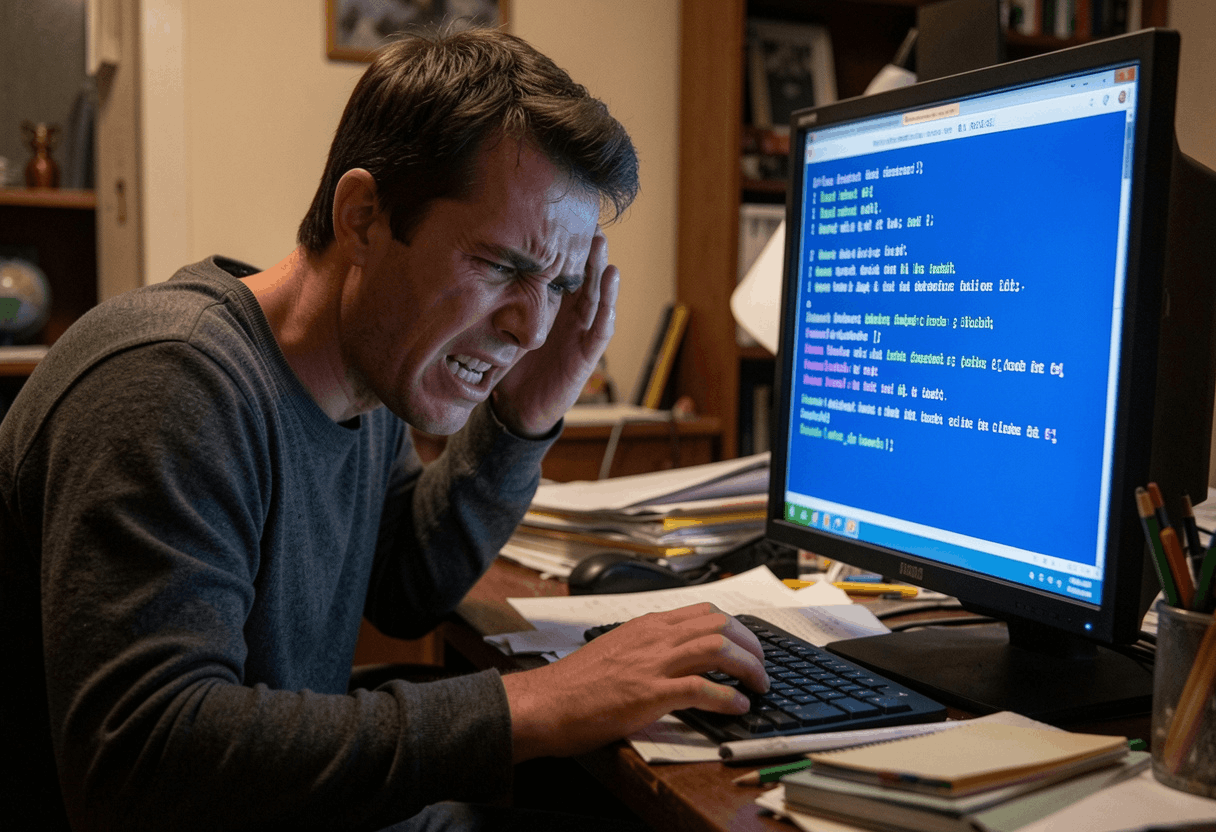
Computers are part of daily life. We use them for work, study, banking, shopping, and staying connected. So, when something goes wrong, even a small error can feel stressful. The good news, however, is that many computer problems are easier to fix than they first appear.
In fact, you do not need to be a tech expert to solve many everyday issues. With a calm approach and a few simple checks, you can often resolve the issue and get your computer running smoothly again.
This article explains how to fix common computer errors in a simple, practical way. It is written for beginners and everyday users who want clear advice without confusing technical language. So, if your computer is running slowly, freezing, showing pop-up errors, or refusing to connect to the internet, you are in the right place.
You may also need: How to Use Cloud Storage Effectively
Why Common Computer Errors Happen
Before you fix a problem, it helps to understand why it happens. In many cases, computer errors come from a few common causes. For example, your device may have outdated software, too many background apps running, low storage space, driver issues, or temporary system glitches. Sometimes, the issue starts after a bad update. At other times, it may be something very simple, such as a loose cable or a weak internet signal.
Because of that, the best way to solve most problems is to begin with the easiest fixes first. Then, if needed, move on to more specific steps.
First Things to Do Before You Try Any Fix
Before jumping into deeper troubleshooting, take a moment to do these basic checks:
- Save your work if possible
- Restart the computer
- Check all cables and connections
- Make sure the device has enough battery or power
- Disconnect any unnecessary USB devices
- Note the exact error message on the screen
These steps may seem basic. Still, they often solve the problem right away. For example, a simple restart can clear temporary bugs and refresh system processes.
1. Computer Is Running Very Slow
A slow computer is one of the most common issues people face. Over time, a device may become sluggish because of too many startup programs, low storage space, old software, or background apps using system memory.
How to fix it
First, restart your computer. This simple action clears the computer’s temporary memory (RAM) and terminates background processes that could be consuming system resources.
Next, check your startup apps:
- On Windows, open Task Manager and look at the Startup tab
- On Mac, go to System Settings and check Login Items
Disable programs you do not need when the computer starts. After that, free up storage by deleting unwanted files, emptying the recycle bin, and uninstalling apps you no longer use.
Also, check for system updates. In many cases, updates fix bugs and improve overall performance.
Helpful tip
Try to keep some free space available on your drive. If your storage is almost full, your computer may slow down noticeably.
2. Computer Freezes or Stops Responding
At times, the screen may freeze, or an app may stop responding. This can happen because of low memory, software conflicts, or too many tasks running at once.
How to fix it
First, wait a minute. Sometimes the computer is still processing a heavy task.
If nothing changes, try the following:
- Press Ctrl + Shift + Esc on Windows to open the Task Manager.
- On Mac, press Command + Option + Escape
Then close the unresponsive app.
If the whole computer is frozen, hold the power button for a few seconds to shut it down. After restarting, try not to open too many apps at the same time.
How to help prevent it
- Keep your system updated
- Close apps you are not using
- Avoid installing too many unknown programs
- Scan for malware from time to time
3. Internet Is Not Working
Internet problems can interrupt almost everything. You may not be able to browse websites, stream videos, send emails, or sign in to online accounts.
How to fix it
Start with the basics:
- Check if Wi-Fi is turned on
- Restart your router and modem
- Restart your computer
- Move closer to the router if you are using Wi-Fi
If that does not help, test another device on the same network. If the second device also has no internet, the issue may be with your router or internet provider.
And If only one computer is affected, forget the Wi-Fi network and reconnect. Also, run your system’s network troubleshooter if one is available.
Extra tip
Sometimes airplane mode gets turned on by mistake. So, make sure to check that as well.
4. Blue Screen or Sudden Restart on Windows
A blue screen error can look serious. Even so, it does not always mean major damage. Often, it points to driver issues, hardware conflicts, or system file problems.
How to fix it
First, restart the computer and see if the problem happens again. If it does, try these steps:
- Remove any recently connected hardware
- Uninstall the newly added software
- Update device drivers
- Run a system file check
- Install pending Windows updates
If the issue started after a recent update, you can also try restoring the system to an earlier point.
Important note
If blue screen errors happen often, back up your important files as soon as you can.
5. Programs Will Not Open or Keep Crashing
It can be frustrating when an app will not open or keeps closing on its own. Usually, this happens because the app is outdated, corrupted, or not fully compatible with your system.
How to fix it
Try reopening the program after restarting your computer. If it still crashes:
- Update the app
- Reinstall the app
- Check for operating system updates
- Make sure your device meets the program’s requirements
Also, avoid running too many heavy programs at once, especially if you are using an older computer.
6. Keyboard or Mouse Is Not Working
If your keyboard or mouse suddenly stops working, the issue may be related to the connection, low battery, or driver problems.
How to fix it
For wired devices:
- Unplug and reconnect them
- Try a different USB port
For wireless devices:
- Replace or recharge the batteries
- Reconnect the Bluetooth device or wireless receiver
Then restart the computer. If needed, update or reinstall the device driver.
Quick check
If possible, test the keyboard or mouse on another computer. This can help you tell whether the issue is with the device itself or with your computer.
7. No Sound From the Computer
No sound can make video calls, music, online classes, and tutorials difficult to use. Thankfully, the cause is often something simple.
How to fix it
First, check the volume level on both your computer and the app you are using. Then make sure the correct output device is selected.
After that:
- Unplug and reconnect your headphones or speakers
- Restart the computer
- Check for audio driver updates
- Run the sound troubleshooter if your system includes one
Also, look for a mute key on your keyboard. Sometimes sound is muted by accident.
8. Printer Is Not Printing
Printer problems are very common, and they often appear at the worst time. Still, most printer issues can be solved with a few simple checks.
How to fix it
Start here:
- Make sure the printer is turned on
- Check paper and ink levels
- Confirm the printer is connected by Wi-Fi or cable
- Restart both the printer and the computer
Next, open the print queue and clear any stuck print jobs. Then make sure the correct printer is set as the default printer.
If the printer still does not work, reinstall the printer driver.
9. Low Storage Space Error
When your storage is full, your computer may slow down, fail to update, or stop saving files properly.
How to fix it
Delete files you no longer need, especially large videos, old downloads, and duplicate photos. Then:
- Empty the recycle bin
- Uninstall unused programs
- Move files to cloud storage or an external drive
- Use built-in disk cleanup tools
Smart habit
Check your downloads folder often. Many people forget about it, and it can fill up surprisingly fast.
10. Computer Overheating
If your computer feels very hot, the fan is unusually loud, or the system shuts down on its own, overheating may be the cause.
How to fix it
First, turn off the computer and let it cool down. Then:
- Place it on a hard, flat surface
- Remove dust from air vents carefully
- Make sure the fan area is not blocked
- Avoid using it on beds, pillows, or soft fabric
If overheating keeps happening, the cooling fan may need professional cleaning or replacement.
11. Update Errors
System updates are important for security and stability. However, they do not always install smoothly.
How to fix it
The first and often simplest solution is to restart your computer and try installing the update again. Also, make sure:
- You have enough free storage
- Your internet connection is stable
- The date and time settings are correct
If needed, run the built-in update troubleshooter. In many cases, this helps fix update services that are stuck.
12. File Will Not Open
A file may fail to open if the correct program is missing, the file format is unsupported, or the file itself is damaged.
How to fix it
First, check the file type. Then open it with the right app. If that does not work:
- Update the related software
- Try opening the file on another device
- Restore an older backup version if one is available
Sometimes the file is corrupted. In that case, recovery may not always be possible.
Safe Habits That Help Prevent Future Errors
Learning how to fix common computer errors is helpful. However, preventing problems in the first place is even better. Here are a few smart habits that can reduce the chances of future issues:
- Restart your computer regularly
- Install updates on time
- Use trusted software only
- Keep enough free storage space
- Back up important files often
- Avoid clicking on unknown links or downloads
- Clean dust from your device carefully
- Use antivirus software or built-in security protection
These simple habits can save time, reduce stress, and help your computer run more smoothly over time.
My Experience With Common Computer Problems
From my experience, most computer problems look worse than they really are. In many situations, the issue comes from something small, such as too many open apps, old software, or a missed update. Because of that, I have found that a calm, step-by-step approach works much better than trying random fixes too quickly.
For example, one of the most common problems I have noticed is slow performance caused by full storage and too many startup apps. Once those were cleaned up, the computer often felt much faster without needing any expensive repairs.
I have also found that writing down the exact error message helps a lot. Instead of guessing, it gives you a clear starting point. So, even if a problem feels frustrating at first, taking simple steps in order usually makes it easier to solve.
When You Should Ask for Professional Help
Although many issues can be fixed at home, some problems need expert support. You should consider professional help if:
- The device is completely unresponsive and won’t power on
- You hear unusual clicking or grinding sounds
- The screen stays black after multiple restarts
- Blue screen errors keep happening
- You think the hard drive may be failing
- Important files are missing and cannot be recovered
If that happens, stop using the device as much as possible and back up your data right away if you still can.
Conclusion
Knowing how to fix common computer errors can save you time, money, and frustration. By learning these troubleshooting steps, you can feel more confident and empowered when something goes wrong. Instead of panicking every time your computer slows down, freezes, or shows an error message, you’ll have a clear, actionable plan.
Start with the basics: restart your device, check all connections, update your system, and free up storage. From there, you can proceed step by step to diagnose the issue.
In many cases, the simplest fix works best. And even when it does not, understanding the problem makes it easier to decide what to do next. So, keep this guide handy, take one issue at a time, and remember that many everyday computer problems can be managed with patience and the right approach.
Frequently Asked Questions
Can I fix common computer errors without technical skills?
Yes, many common computer problems can be fixed with simple steps such as restarting the device, checking connections, updating software, and clearing storage. In other words, you do not need advanced technical skills for many basic issues.
Why does my computer keep slowing down over time?
Usually, this happens because of too many startup apps, low storage space, outdated software, or background programs using memory. As a result, regular cleanup and timely updates can make a big difference.
Is restarting my computer really helpful?
Yes, very often it is. Restarting clears temporary glitches, refreshes system processes, and can solve many minor problems quickly. That is why it is one of the best first steps to try.
How often should I update my computer?
It is a good idea to install important updates as soon as they become available. This helps improve security, performance, and overall system stability.

