


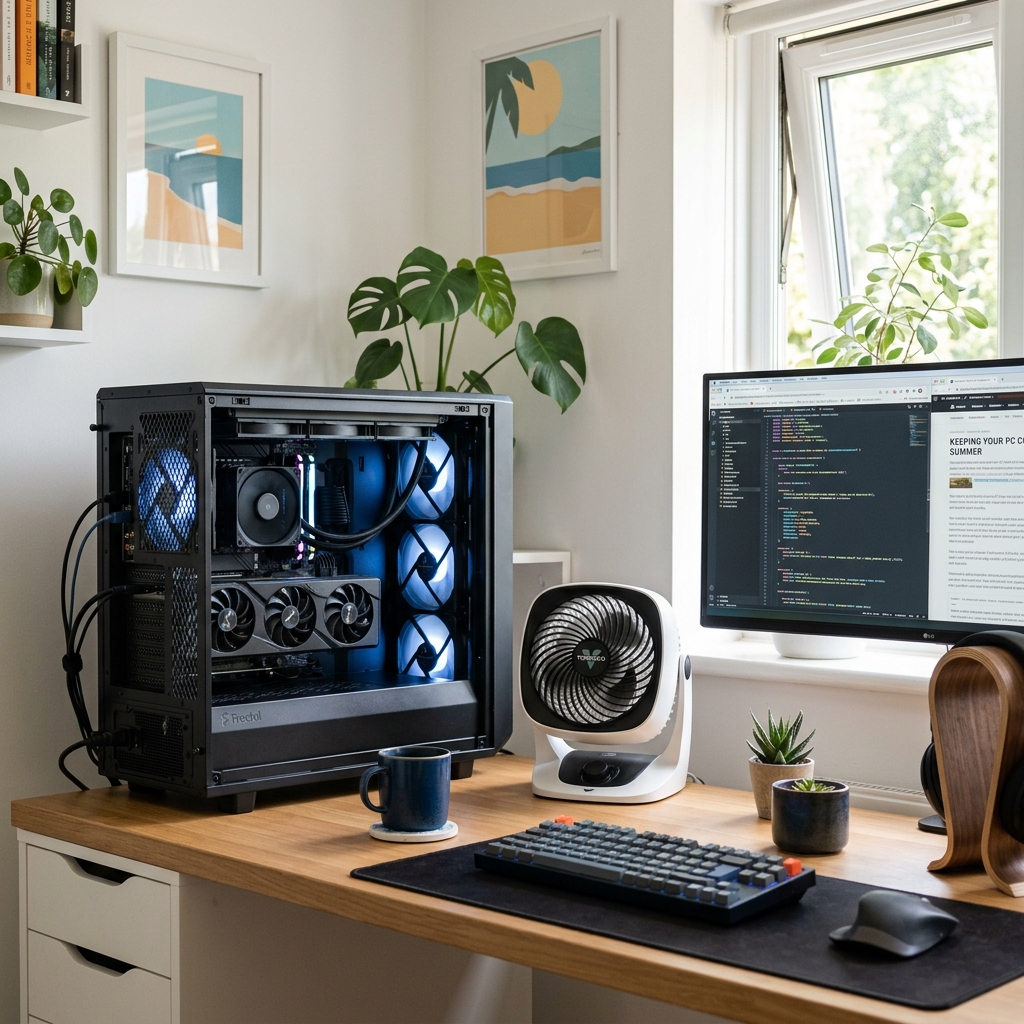
Summer can be a challenging time for your PC. With rising temperatures, it’s essential to keep your computer cool to prevent potential damage. Overheating can lead to performance issues, crashes, and even hardware failure in extreme cases.
When the internal components of your PC get too hot, it can cause permanent damage to your system. But don’t worry, with a few simple steps, you can keep your PC cool and running smoothly during the summer months.
Why Your PC Heats Up More in Summer
Let’s start with the why, because it makes everything else easier to understand. Your computer produces heat whenever it works. The processor, graphics card, and power supply all warm up as they handle tasks. To stay safe, your PC draws in cool air, expels hot air, and uses fans and heatsinks to maintain that balance.
Summer throws that balance off. Since the air in your room is already warm, your PC’s cooling system has less cool air to work with. This causes heat to build up faster, forcing the fans to spin harder just to keep up. Once the temperature passes a safe threshold, your PC will intentionally slow down to protect its components. This process, known as thermal throttling, is why a hot computer often feels sluggish.
Put simply, a warmer room almost always means a warmer PC. That’s why a few smart summer habits can make a noticeable difference.
Warning Signs Your PC Is Overheating
Before you fix the heat, you have to catch it. The good news is that an overheating PC rarely stays quiet about it. Look out for these signs:
- Loud fans that run constantly, even during light tasks like browsing.
- Sudden slowdowns while gaming, editing, or watching videos.
- Random shutdowns or restarts with no clear reason.
- A hot case or keyboard that’s warm to the touch.
- Frequent freezes or programs crashing again and again.
While a single symptom might be nothing, two or three together often point to overheating. The fixes below are simple, safe, and mostly free, so they’re the perfect place to start.
Simple Ways to Keep Your PC Cool During Summer
Now for the practical part. Below are easy, proven steps to lower your PC’s temperature. Work through them from the top, since the early ones are the quickest wins. If your PC still runs hot afterward, move on to the more advanced tips.
1. Give Your PC Room to Breathe
Your computer needs space, plain and simple. Yet so many people tuck their PC against a wall, hide it inside a closed cabinet, or bury it under papers and cables. All of that traps hot air right where it shouldn’t be.
The fix costs nothing. Leave a few inches of open space around the case, and keep the vents on the back and sides clear. For laptops, skip soft surfaces like beds, pillows, or your lap, because fabric covers the vents underneath and chokes the airflow. An open, breathable setup is one of the easiest ways to keep a PC cool all summer.
2. Clean Out the Dust
Dust is the quiet troublemaker inside almost every hot PC. Over time, it settles on the fans, clogs the vents, and forms a fuzzy layer over your hardware that traps heat like a blanket. You often won’t notice it building up until your PC starts running loud and warm.
To clean a desktop safely, follow these steps:
- Shut down your PC and unplug it from the wall.
- Open the case (if you’re comfortable doing so).
- Use compressed air in short bursts to blow dust off the fans and vents.
- Hold the fan blades still with a finger so they don’t spin while you spray.
For laptops, just blow compressed air into the outside vents, since opening them can affect your warranty. A quick clean every three to four months keeps your airflow strong and your fans quiet.
3. Move Your PC to a Cooler Spot
Where you put your computer matters more than most people realize. A PC sitting in direct sunlight or right next to a sunny window will always run hotter than it should. The same goes for one resting on a thick carpet, which smothers the bottom vents.
So give it a better home. Move your PC to a shaded, well-ventilated spot. Then, place it on a hard, flat surface like a desk to ensure air can flow freely around the case. This one small change often drops the temperature right away, no tools required.
4. Cool the Room, Not Just the PC
Sometimes, the problem isn’t the computer; it’s the room it’s in. After all, if the air your PC pulls in is already hot, there’s only so much the fans can do.
You don’t need anything fancy. A simple fan, an open window in the cool evening air, or air conditioning during the worst of the afternoon all help. Closing the curtains during the hottest part of the day can also keep the room cooler. And here’s the bonus: a cooler room feels a lot better for you while you work.
5. Close Programs You Don’t Need
The harder your PC works, the more heat it makes. That’s why dozens of open browser tabs, hidden background apps, and hours of heavy gaming can quietly raise your temperature.
Start by closing anything you aren’t actually using. Then open your task manager and look for programs eating up resources in the background, often without you realizing. If you’re gaming or editing for long stretches, take a short break now and then. Those pauses give your system a real chance to cool down.
6. Use a Laptop Cooling Pad
If you’re on a laptop, a cooling pad is one of the cheapest upgrades you can make. These flat stands sit under your laptop and use small built-in fans to push extra air toward the vents. They also lift the laptop slightly, which lets air move more freely underneath.
For gamers and people who work from a laptop all day, a cooling pad is a small investment with a real payoff once the weather heats up.
7. Adjust Your Fan Settings
Many desktops let you control fan speed through the BIOS or with free software from your motherboard’s maker. In other words, you can tell the fans to spin harder the moment things get warm.
This one is a little more advanced, so take it slow. Look for a setting called a “fan curve,” which links fan speed to temperature. A more aggressive curve means louder fans but cooler parts, and during a heat wave, that’s usually a trade worth making.
Desktop vs Laptop: Cooling Is Not the Same
It’s worth knowing that desktops and laptops handle heat quite differently, because the same fix doesn’t always work for both.
Desktops have plenty of room inside, larger fans, and more airflow, so they tend to stay cooler and are far easier to clean and upgrade. If a desktop overheats, you usually have lots of options, from extra case fans to fresh thermal paste.
Laptops are a tighter story. Everything is packed into a slim body with small fans and narrow vents, so they heat up faster and have less room to recover. That’s why little things matter more on a laptop, keeping it on a hard surface, never blocking the side or bottom vents, and using a cooling pad during heavy use. If you mostly use a laptop in summer, treat airflow as your top priority, since you have fewer cooling tricks to fall back on.
When Overheating Means a Bigger Problem
Most summer heat issues are easy to solve at home. Now and then, though, overheating points to something more serious, and it helps to recognize the difference.
Pay closer attention if your PC keeps overheating even after you’ve cleaned the dust, cleared the vents, and cooled the room. Sudden shutdowns during light tasks, fans that scream constantly no matter what, or temperatures that stay sky-high while the machine sits nearly idle can all signal a deeper fault. A failing fan, dried-out thermal paste, or an aging part may be to blame.
In those cases, it’s wise to bring in a professional. Replacing thermal paste, swapping a dead fan, or diagnosing a hardware fault is best handled by someone who knows their way around the inside of a PC. There’s no shame in it, and a small repair bill now often saves a much larger one later.
Don’t Forget to Check Your Temperatures
You can’t fix what you can’t measure. Free tools like HWMonitor, Core Temp, and MSI Afterburner let you see exactly how hot your CPU and GPU are getting in real time.
As a rough guide, most CPUs stay comfortable under heavy load below about 80°C (176°F), though safe ranges do vary by model, so check your specific hardware. The most useful trick is to test your temperatures before and after you clean or move your PC. Watching those numbers drop is the clearest proof that your effort actually paid off.
Common Mistakes to Avoid
Finally, steer clear of a few habits that quietly make things worse. Even careful people fall into these traps:
- Blocking the vents by pushing the PC tight against a wall.
- Using a vacuum cleaner inside, which can create harmful static. Use compressed air instead.
- Ignoring loud fans, which are a warning sign, not just background noise.
- Leaving a laptop on soft surfaces like beds and blankets.
- Skipping cleaning for years, since dust creeps up so slowly you barely notice.
Avoiding these simple slip-ups goes a long way toward keeping your PC healthy all summer long.
Conclusion
Keeping your PC cool in summer is more about good habits than expensive gear. For most people, ensuring clear airflow, regular dusting, smart placement, and a cool room will solve overheating issues. Start with these simple fixes. If you still have problems, you can adjust fan settings, use a cooling pad, or seek professional help.
The reward is worth the small effort. A cooler PC runs faster, lasts longer, and crashes far less often, which means fewer headaches and more time actually using your machine. So pick one or two tips from this guide and try them today. The next time the temperature climbs, your computer will handle it like a champ, and you’ll be glad you got ahead of it.
Frequently Asked Questions
Is it normal for a PC to get hotter in summer?
Yes, it’s completely normal. When the air around your PC is warmer, its cooling system has to work harder to pull in cool air. As a result, your fans run faster, and your temperatures are a little higher than in winter. A small rise is nothing to worry about. However, if your PC often crashes or slows down, that’s a sign it needs better cooling.
How hot is too hot for my PC?
As a simple rule, most CPUs and GPUs remain safe under heavy load at temperatures below about 80°C (176°F). Short spikes during gaming or editing are normal. On the other hand, if your temperatures sit well above that during everyday tasks, it’s time to clean the dust, improve airflow, or cool the room. Always check your exact hardware, since safe ranges differ by model.
How often do I need to clean dust out of my PC?
For most homes, cleaning every three to four months works well. That said, if you have pets, keep your PC on the floor, or live in a dusty area, you may need to clean it more often. A quick look inside every few months will show if dust is building up faster than expected.
Can summer heat actually damage my computer?
A single hot day won’t ruin your PC. Still, repeated overheating over weeks or months puts real stress on your hardware. In time, that stress can shorten the life of parts like the CPU, GPU, and battery. Keeping your PC cool now is the easiest way to avoid costly repairs later.
Do I really need to spend money to keep my PC cool?
Not at all. In fact, most of the best fixes are free. Clearing the vents, dusting the fans, closing unused programs, and cooling the room all cost nothing. You only need to spend money if you want extras like a cooling pad or new thermal paste, and even those are usually affordable.

